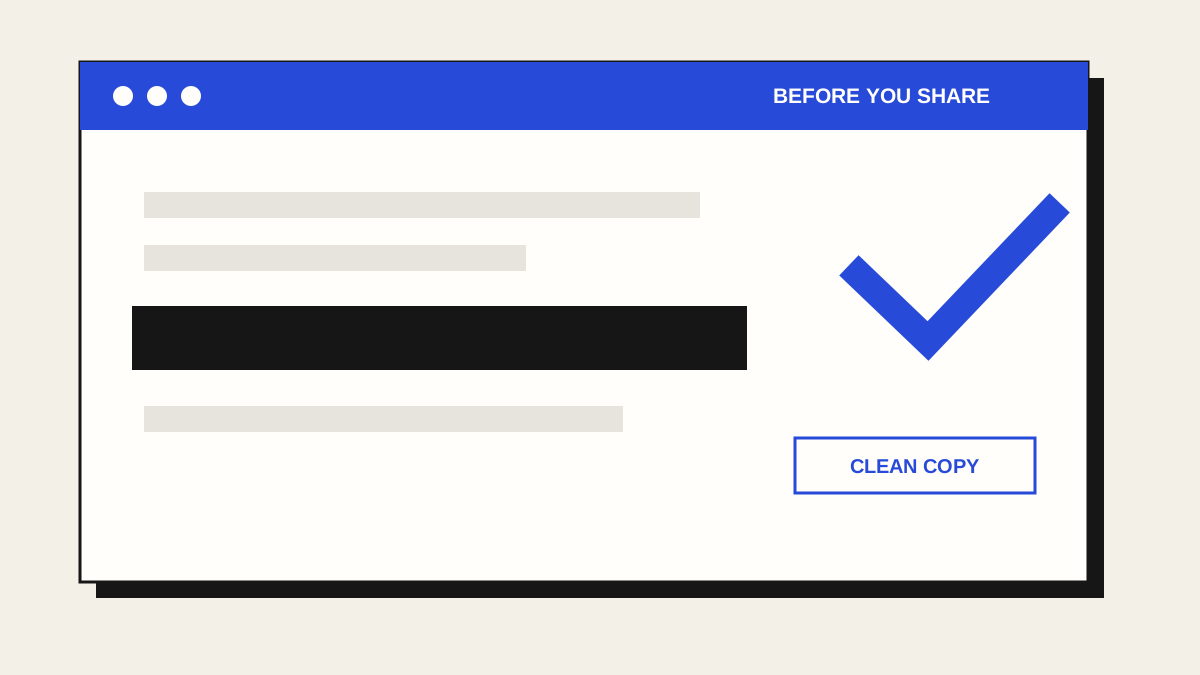
A screenshot can reveal more than the part you intended to show: names in browser tabs, an email address in a corner, a notification, a document title, or the address bar. Give the entire image a quick review before sending it.
1. Prepare the screen
Close private tabs and dismiss notifications if you can. Capture only the window or area the other person needs. If the screenshot is already in your clipboard, open ShareReady and press Ctrl+V (or ⌘V on a Mac). You can also choose or drop an image file.
2. Cover secrets, then crop
Drag a solid cover over names, email addresses, phone numbers, account IDs, QR codes, private URLs, and anything else you would not want a stranger to read. Crop away unrelated parts of the screen. Check the edges of each cover; a few visible characters can be enough to identify something.
Use an opaque block for sensitive text. Blur and pixelation can leave clues; the Electronic Frontier Foundation recommends blocking identifying details out when anonymity matters.
3. Inspect the exact final image
Choose Preview final in ShareReady. Look at all four corners, browser tabs, the address bar, notification banners, reflections, and the context around your subject. Ask whether someone could still work out a person’s identity or a private detail from what remains. The tool does not detect sensitive content for you, and no editing method can guarantee anonymity.
4. Copy or download the clean copy
Choose Copy image if you want to paste the result straight into a message, or Download PNG if you need a file. ShareReady renders a new, flat PNG with covers baked into its pixels; the original image stays unchanged. If your browser blocks clipboard access, download the PNG instead. Before sending, inspect the image preview in the destination app and make sure you selected the clean copy.
If you need to keep the original, store it separately from the shareable copy. Avoid sending the unedited screenshot by mistake.

Free browser tool
Make a clean copy with ShareReady
Paste, cover, crop, preview, then copy or download. The image is processed in your browser tab, without an upload, account, analytics, or AI.
Open ShareReadyFurther reading: MDN on canvas image export and MDN on writing images to the clipboard.